What is Searchable? #
Searchable is an application (managed package) built in Salesforce. Your company can install this package to your org and use our suite of advanced search tools.
Key Terms #
Search Objects: Specify object, filter criteria, fields displayed to user, and fields to be searched
For example, Accounts could include all accounts or using filter criteria, separate Search Objects can be created for Business Accounts and Individual Accounts.
Search: A collection of search objects. Can be shared with other users and added to the global library
Get to Know Search Console #

- Search dropdown: Choose from pre-configured searches to quickly specify criteria for search
- Mode: for more information see Search Modes Explained
- Focused Search: 1 search box for each object to be searched
- Quick Search: Searches across multiple objects in 1 search
- Console Search: Searches multiple objects and all searches shown
- Settings: Opens user settings
- Filter: Narrow results further
- User search input: Text will be used to search across Search Fields. Automatically searches using wildcard for partial text. Ids are the only field type where the search must be exact.
- Search button: Can also click “Enter” key to search
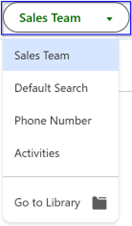
The dropdown displays a list of any searches you have created or downloaded. Click a search to select it as your active search.
Click “Go to Library” for searches public to your company or shared with you.
Get To Know User Settings #
Click Gear  icon to open user settings
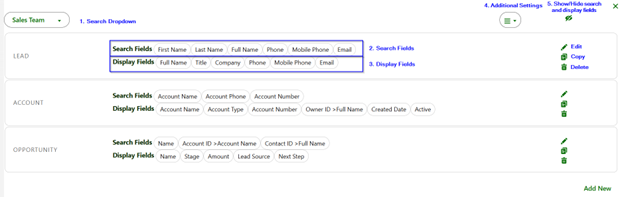
1. Search Dropdown
Change search being edited or open the library
2. Search Fields
Text input from user is searched across these fields. Can be the same or parent object
3. Display Fields
Display fields are shown in the search results
4. Additional Settings
- New
- Clone
- Rename
- Sharing Settings
- Delete
- Paste (Only shown after clicking “Copy”)
5. Show/Hide fields toggle
Hides search and display fields
Other Buttons
Edit: Open window to edit search and choose search fields, display fields, and additional filter criteria
Copy: Can copy search object and paste to another Search
Delete: Delete search object


