Installation #
Navigate to the Searchable AgentExchange (AppExchange) Listing
Use the appropriate option to install the free trial:
Get it Now – Install to Production or Developer Edition Org
Try It – Install to Sandbox
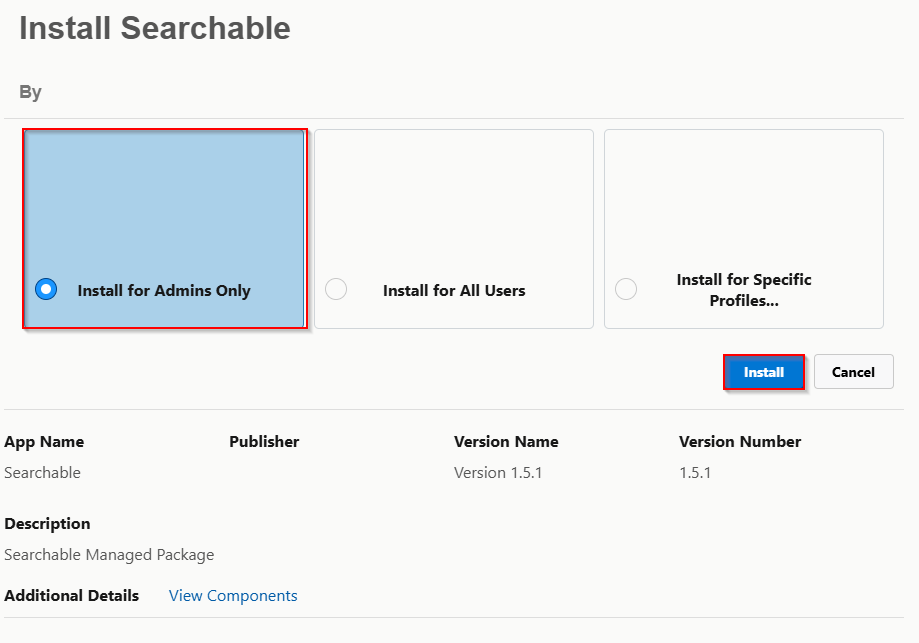
Leave as “Install for Admins Only” – We will add users later with permission sets. No need to push to everyone here.
Click “Install”
Assign Appropriate Permission Sets
To get started, assign the Searchable Manager permission set to yourself (or the admin who will be setting the app up)
- Searchable User – Base permissions required to use search tool
- Searchable Manager – Includes all base user permissions in addition to the ability to create and share searches with other users- Admins get this permission set. Your company can choose other trusted users to grant manager access.
Setup – Permission Sets
Click the “S” button to move to the correct page
Select the desired permission set
Click “Assign To User” and search for the appropriate users
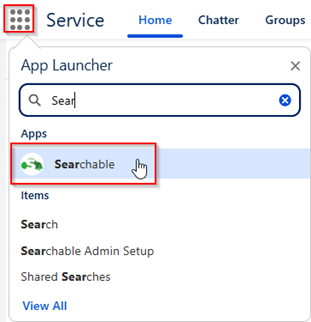
Once the “Searchable Manager” permission set has been assigned to our admin user, Open App launcher, search for and select “Searchable” App
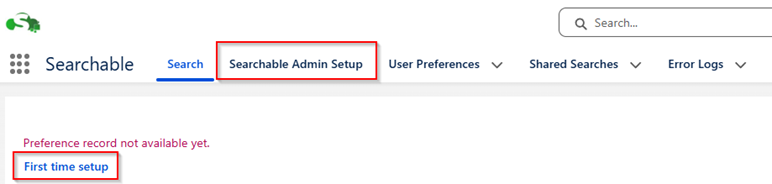
First time setup
Clicking this will create a User Preference record. Each user clicks this button the first time or admin can mass insert these records for everyone to skip this step and start with default
Searchable Admin Setup
Detailed settings to control if users can create searches, auto-search, search modes, and more searches.
Add Searchable LWC to App Page, Home Page, or Record Page
- Click “Edit” next to an existing page or click “New” to create a new one
- Under the “Custom” section, find “Searchable” and drop it on the page in your desired location
- Component Properties – These are all optional. Any value set here will override defaults set in the Admin Setup Page.
- Global Config – If specified, will override users search preferences and use a global configuration (from the library) instead
Add Searchable LWC to Utility bar
- From Setup – In the quick find box, search for and select App Manager
- Next to your desired app, select the dropdown and click “Edit”
- Select the tab (Utility Items – Desktop Only)
- Click Add Utility Item
- In the Search box, Type “Searchable” and select it
- Panel width (340) and Panel height (480) are the defaults but feel free to adjust
- Start Automatically – leave this unchecked
- Component Properties – These are all optional. Any value set here will override defaults set in the Admin Setup Page. See Custom Metadata Types for more information on what each of these properties mean.


