Get To Know Settings #
Click Gear  icon to open user settings
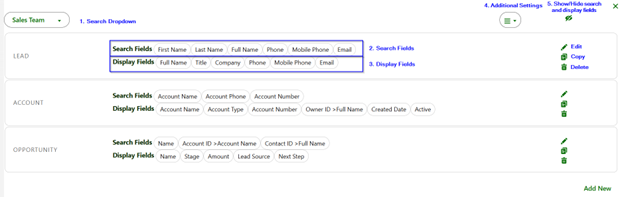
1. Search Dropdown
Change search being edited or open the library
2. Search Fields
Text input from user is searched across these fields. Can be the same or parent object
3. Display Fields
Display fields are shown in the search results
4. Additional Settings
- New
- Clone
- Rename
- Sharing Settings
- Delete
- Paste (Only shown after clicking “Copy”) see Pasting Search Object
5. Show/Hide fields toggle
Hides search and display fields
Other Buttons
Edit: Open window to edit search and choose search fields, display fields, and additional filter criteria
Copy: Can copy search object and paste to another Search
Delete: Delete search object
Create a new search object #
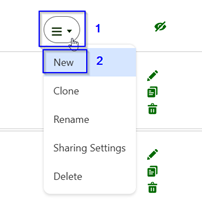
Click Gear icon to open settings
- Click
 dropdown
 - Click New
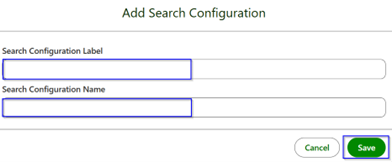
Search Configuration Label: Enter a label that the user will see in the search results to specify the type of record returned
Search Configuration Name: Enter a unique name with no spaces. Will prefill based on the label.
Click Save
Clone Search Object #
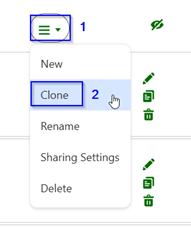
Click Gear icon to open settings
- Click dropdown
- Click Clone
Rename Search Object #
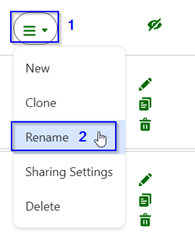
Click Gear icon to open settings
- Click dropdown
- Click Rename
Delete Search Object #
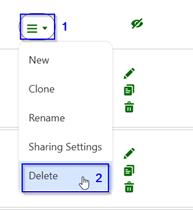
Click Gear icon to open settings
- Click dropdown
- Click Delete
- Click Ok to confirm
Pasting Search Object #
Used to copy from one configuration to another. See Key Terms.
Click copy button  next to an object.
Select desired from dropdown.
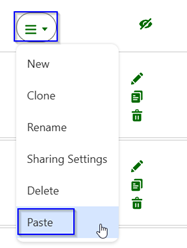
- Click dropdown
- Click Paste
*Paste will only show after a search object has been copied to the clipboard


