Installation #
Initial installation and setup steps should be completed by a Salesforce System Administrator
Installation #
Navigate to the Searchable AgentExchange (AppExchange) Listing
Use the appropriate option to install the free trial:
Get it Now – Install to Production or Developer Edition Org
Try It – Install to Sandbox
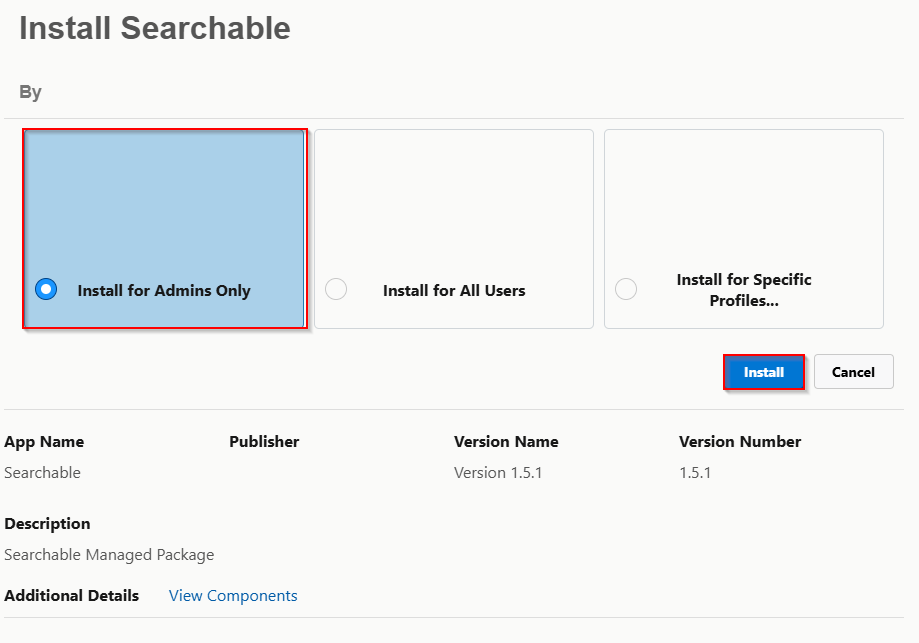
Leave as “Install for Admins Only” – We will add users later with permission sets. No need to push to everyone here.
Click “Install”
Assign Appropriate Permission Sets
To get started, assign the Searchable Manager permission set to yourself (or the admin who will be setting the app up)
Setup – Permission Sets
Click the “S” button to move to the correct page
Select “Searchable Manager”
Click “Assign To User” and search for the appropriate users
Once the “Searchable Manager” permission set has been assigned to our admin user, Open App launcher, search for and select “Searchable” App
Permissions #
Assign appropriate permission sets to each user who will be using the search component. The following options are supported:
- Directly assign permission sets to users (Searchable User or Searchable Manager)
- Add permission set to a permission set group users have
- Utilize custom permission sets and add the “Custom Permission” with the same name to your company’s custom permission set
Permission Sets #
- Searchable User – Base permissions required to use search tool
- Searchable Manager – Includes all base user permissions in addition to the ability to create and share searches with other users- Admins get this permission set. Your company can choose other trusted users to grant manager access.
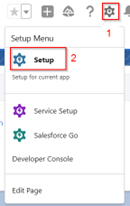
- Click
 icon
icon - Click Setup
Assign Permission Sets to a Single User
- Enter the users name in the “Search Setup” box and select the correct user
- Click “Edit Assignments” under permission sets
- Add one of the above permission sets to the user
Mass Assign Permission Sets
- In the quick find box, search for and select “Permission Sets”
- Click the “S” to filter permission sets
- Select “Searchable Manager” or “Searchable User”
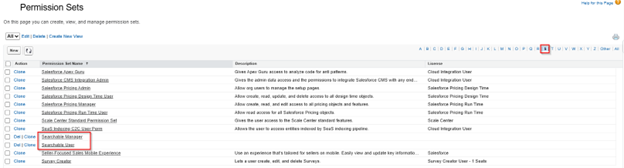
Select “Manage Assignments”

Click “Add Assignments”
Select a List View or create a new one to display users to add
Check boxes next to each user and click “Next”
Click “Assign”
[Missing screenshot?]
Adding Searchable LWC #
Search can be used in as many places in your org as desired including the Utility Bar, Home Pages, App Pages, Record Pages, and Screen Flows
Utility Bar #
- Navigate to Setup
- In the Quick Find box, search for and select App Manager
- Next to your desired app, select the dropdown and click “Edit”
- Select (Utility Items – Desktop Only)
- Click Add Utility Item
- In the Search box, Type “Searchable” and select it
- Panel width (340) and Panel height (480) are the defaults but feel free to adjust the size of this window as desired
- Start Automatically – leave this unchecked
- Component Properties – These are all optional. Any value set here will override defaults set in the Admin Setup Page. See Custom Metadata Types for more information on what each of these properties mean.
App Page, Home Page, or Record Page #
- Navigate to Setup
- In the Quick Find box, search for and select Lightning App Builder
- Click “Edit” next to an existing page or click “New” to create a new one
- Under the “Custom” section, find “Searchable” and drop it on the page in your desired location
- Component Properties – These are all optional. Any value set here will override defaults set in the Admin Setup Page.
- Global Config – If specified, will override users search preferences and use a global configuration (from the library) instead. See Custom Metadata Types for more information on what each of these properties mean.
Screen Flow #
Possible use cases:
- Extend your CTI adaptor capabilities: CTI adaptor launches screen flow which contains Searchable LWC on the first screen. Many CTI adaptors will pass the caller Id phone number to flow allowing you to automatically pass that as Search Text to your screen flow and auto-search with complex logic across multiple objects
- Lookups within flow – Sometimes instead of using a lookup field on your screen, you may want the user to choose between multiple objects. For example, user selects a task or event to proceed.
- Output Flow – By default when a user clicks a search result, that page will open in a new window. Alternatively use the Output Flow Name parameter to automatically launch a Screen or Auto-launched flow when the user selects a record.
Searchable Admin Setup Page #
Custom Metadata Types #
These custom metadata types can be configured by navigating to the Searchable Admin Setup page or by navigating to Setup – Custom Metadata Types – Searchable Global Setting
** These values will be the default for your org. If Searchable is used in multiple places in your org, parameters set on the lightning page, app builder, or within screen flows will override this value.
Example: Allow base user to create searches is deactivated in the Admin Setup Page. You can still set this value to true when adding the LWC to the home page only certain teams have access to.
- Allow base user to create searches – (Default active)If this is deactivated, users can “Get” searches from the library and use these preconfigured searches but will not be able to open settings to create new searches. This can be useful for larger teams where power users (Those with “Searchable Manager” permission set) create searches for their teams and share.
- Allow user to change Search Mode – Setting to “true” allows the user to toggle between Precise and Multi-Object modes
- Auto-search Active – Search automatically when min characters met. Users can still click “Search” or “Enter” if this is active.
- Auto-search Delay (Milliseconds)- If auto search is active, this delay prevents a new search for each character typed. 250 ms (.25 seconds) is the default value.
- Max Search Fields – Max # of fields to be queried by the search. Searching across many fields will cause slow searches
- Max Display Fields – Max # of fields returned on an object. Too many fields slightly decreases performance and can be overwhelming to look at.
- Minimum Characters To Search – Searches with 1-2 characters only may return too many results causing slow performance. Orgs with large data sets should set this at 3-4 characters. (Test and adjust as needed)
- Open Dropdowns On Hover – When inactive, the user clicks to open and close dropdowns
- Output Flow Id Variable Name – (Default inactive) Only set this if using “Output Flow Name” setting as well. When the user clicks a record, the designated screen flow is launched and passed the Id clicked. This setting controls the name of that variable. “recordId” is the most common name.
- Output Flow Name – (Default inactive) Api name of flow to run when record is selected. This can redirect a user to a screen flow or run an auto-launched flow in the background.
- Restricted Objects – (Default inactive) Comma separated list of objects this app will exclude. No users (including admins) will be able to create searches using these objects and previously created searches will not return any results. By default, users can only search objects they have permissions to access. This setting is an additional safeguard. Example: User, Custom_Object__c *Include namespace if applicable
- Search Mode Default – Default if the user does not have a personal setting. When “Allow user to change Search Mode” is set to “false” this value will always be used
- Precise: 1 search box for each object to be searched
- Multi-object: Searches across multiple objects in 1 search
Custom Labels #
The following custom labels can be used to change the text appearing in titles, buttons, and informational help text. Use translation workbench for multilingual support.
Navigate to the custom labels in your org:
- Click icon
- Click Setup
- In the Quick Find, search for and select “Custom Labels”
| Label | Default Value | Value of “blank” or ”null” hides | Description |
| Get Button Label | Get | No | In the library, the button used to download a shared or public search configuration |
| Library Heading | blank | Yes | Header at the top of the Library. “blank” or “null” will hide this header. |
| Preview Button Label | Preview | No | In the library, this button will open a search configuration to show additional details |
| Open Library Label | Go to Library | No | Found at the bottom of the search dropdown, this option will launch the library |
| Search Field Description | blank | Yes | Default is “blank” which hides this. Displayed above the “Type to search” box if your users require additional instructions. |
| Search Button Text | Search | No | Search button |
| Save To Library Button Label | Save To Library | No | This button is located in the “Sharing Settings” |
| Searchable Heading | blank | Yes | Displayed at the top of the main page. Default of “blank” hides this header |
| Settings Title | Settings | Yes | At the top of the settings page |
| Sharing Configuration Label | Sharing Configuration | No | Header at the top of Sharing Settings window |
| Filter Results Header | Filter Results | Yes | Displayed at the top of the filter modal opened from the main page |
| Placeholder Text Label | Type to search… | Yes | Placeholder text where the user will be typing to search giving the user instruction |
Error Logs #
When an error occurs in this app, a record is created to log the error details. searchable__Error_Log__c is typically for system administrators only. It is not recommended to give users access to this object.
Common errors like System.QueryException will include information like the query that failed.


